Friday, October 30, 2015

SSRS Reporting Services IE Issues

SSRS Prompt for username and password in IE 

This is for IE9 with Windows 7 operating systems
1. Open Internet Explorer (IE9) and from the tools menu, choose Internet Options
2. From the Security Tab, choose Local intranet and click on Sites
3. Click on Advanced button
4. Type in localhost in Add this website text field and click on Add button (Un-tick the box Require server verification (https:) for all sites in this zone)

There are two issues that you will find out when you finish the installation of SQL Server 2012 or SQL Server 2008 R2:
1. When you try to access Reporting Services using your IE browser, it will constantly prompt you to enter username and password.
2. After the successful entry of login details in IE, you will get the following error message:
User ‘Domain\User’ does not have required permissions. Verify that sufficient permissions have been granted and Windows User Account Control (UAC) restrictions have been addressed. 

1. From Start > All Programs > Internet Explorer, Right Click and choose Run as administrator
2, Enter the Reporting Services URL: http://localhost/Reports_SQLExpress
3. Running as administrator will allow you to have access to Site Settings. Click on it
4. You will see the General Site Settings page
5. Click on Security from the left side menu and choose New Role Assignment 6. Add the username or Group that you want to grant permission to and select the appropriate role
7. Now go to Home page and click on Folder Settings. Add the username or Group that you want to grant permission to the main Home page
8. All done now. You can normally open IE and it will work without an AUC error. You can also create Folders within the Home page and restrict access to specific users.

Configure the Unattended Execution Account
1.Start the Reporting Services Configuration tool and connect to the report server instance you want to configure.
2.On the Execution Account page, select Specify an execution account.
3.Type the account and password, retype the password, and then click Apply

Thursday, October 15, 2015

Implementing Page Break while exporting bulk data to Excel 2003

1.     Background


The purpose of this article is how to implement Page Break and grouping while exporting bulk data to excel. It provides a solution to resolve the issue with excel 2003 limitations of 65,000 records. SQL Server Reporting services by default export the report into excel 2003 format (.xls). Excel 2003 has worksheet of size 65,536 rows by 256 columns. When we export a report which has more than 65,536 records into excel. It gives the following error:


To resolve this problem, here I am going to share some useful information and my experience  regarding how to resolve the export issue with  excel ‘s 65,536  records limitation while working in SSRS. 


2.     What is Excel 2003’s 65,536 records limitation?    

                Microsoft Excel 2003 has a limitation of 65,536 records in a sheet. As we know that SQL Server Reporting Service is one of the most popular tools for creating the reports. Many      times, a developer has to create reports for bulk data. In this case, when we go to      export the report, it gives error due to limitations of excel. Microsoft Excel is the      most   flexible format to see the report. It supports dynamic reports which have drilldown, drill             through and interactive sort. We can see the report more easily in            excel as compare to other formats. So for enterprise data level, it is necessary to resolve       the issue to get advantages of Microsoft excel with SQL Server Reporting Services.
3.     Step by Step procedure to create a report

                Here I am going to create a simple tabular report with a table that has more than 65,536                records.

a.      While creating dataset for report. Check the count of the table for which we are going to create report


The table has 121710 records.


b.     Dataset for report

                     Select query that retrieve all the records from the table:

c.      Layout design

                I have created a simple report that has three columns – CalendarYear, SalesRegion and                 SalesAmount:
               

d.     Preview the Report.

                Here I run the report for all the records available in “GlobalSales_Fact” table: You can   see the report has total 2767 pages. It has 1, 21, 710 records because we are extracting        all the records from GlobalSales_Fact table.


e.      Export the Report to Excel (Default format is xls)


f.       While exporting, Reporting Service gives the error:

           
Excel Rendering Extension: Number of rows exceeds the maximum possible rows     per  sheet in this format: Row Requested: 121716, Max Rows:  65536

               
v  Create a Row Group: Go to Row Group pane, Right click on the Details èAdd Group è Parent Group.


v  Tablix Group window comes. Here we have to put GroupBy Expression for this new Group.
                       

v  Click on the expression button and put the expression to makes group of each 65,536 record sets.
Expression:  =CInt(Ceiling(RowNumber(Nothing)/65000))
                               
                                Click ok.
v  Row Group has been created. We can see the Group1 in  the Row Group Pane:


v  In the report Layout, you can see Group1 is shown in the Report Layout:
                               

v  Right Click on the Group1 column èDelete Columns
                               
v  Delete Column window comes, Choose Delete column only and click on:


v  Now you can see the Group1 column is deleted but Group1 is still available in the report that groups every 65,500 records:


v  Go to Group1 property by right click on Group1 in Row grouping pane:


v  In the Group property, go to Page Beakè Page Break Optionè Check the box for “Between each instance of a group” and “at the end of group”.
                               

v  Right click on the Tablixè go to Tablix property. Tablix property windows comes: Check “Add Page break after” and in column header, check “Repeat header columns on each page.”


v  After implementing Page Break and Grouping, run the report and export it to excel. Now Report is exported successfully. You can see a Save window for saving the excel report:


v  Save and Open the excel.
v  In the Excel sheet, Data exported into sheet1 and sheet2. Sheet1 has 65,500 records as per the grouping we implemented and sheet2 has 56710 records.

Total records in the table = Total Records in sheet1 + Total records in sheet2
                121710                     = 65,500 + 56,710

v  Output of Sheet1:


v  Output of Sheet2:


5.     Conclusion

By using Page Break & appropriate grouping, we can export the bulk data report from SSRS to excel 2003. This is very useful in reporting where we have to deal with bulk data e.g data warehouse.

----------------------------------------------------End of Article---------------------------------------------------

Sunday, October 11, 2015

Calendar Date Picker for MDX based Reports in SSRS

Generally any SSRS report contains one date parameter. User never prefers list of values for date parameter, they always want to choose the date value from the Calendar Date Picker. It is very easy to use Calendar Date Picker when we create report against any relational database, but when we create SSRS report against SQL Server Analysis Services then we can’t directly feed Calendar Date Picker value into the MDX query. 


This article will answer for these questions: 

How to feed calendar date picker value into MDX query?
How to use Calendar Date Picker parameter for MDX based reports? 
What are the advantages of Calendar date picker over list of values parameter?

Problem
Most SSRS reports contain at least one date parameter and users prefer to use a Calendar Date Picker. It is very easy to use a calendar date picker when we create a report against a relational database, but when we create a SSRS report against SQL Server Analysis Services then we can't directly feed the Calendar Date Picker value into a MDX query. This tip will demonstrate how to feed a calendar date picker value into a MDX query, how to use a calendar date picker for MDX based reports and the advantages of a calendar date picker over a list of values.
Solution
This tip assumes that you have previous experience building a simple SSRS report against an Analysis Services Data Source. In this tip we will first look at the problem with a simple example and later I will demonstrate the steps to solve the problem.

Lets understand the problem with a simple example

Step 1

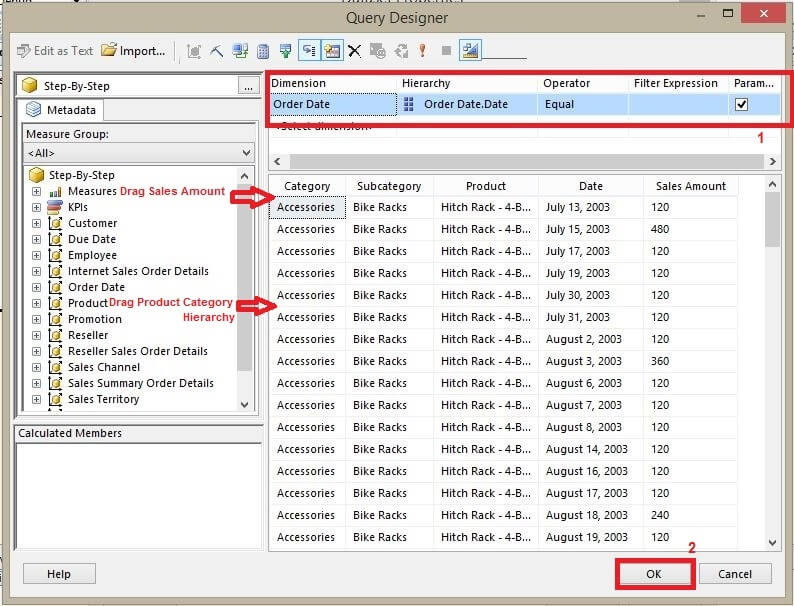
I am creating a simple SSRS report against MDXStepByStep SQL Server Analysis Services database. I have already created the data source connection for the MDXStepByStep database. After creating the data source connection I am creating my dataset which gives product Sales Amount information at the day level. My dataset contains one Date Parameter; you can refer to the below image.
Report DataSet

Step 2

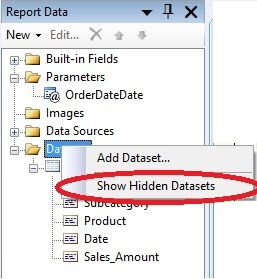
At the time of the dataset creation if you declare a query parameter then SSRS automatically creates the report parameter along with its parameter dataset. As you can see from the below image @OrderDateDate report parameter has been created automatically. By default all Parameter datasets are hidden, if you want to see Hidden Datasets then right click on Datasets and click on "Show Hidden Datasets".
Report Parameter
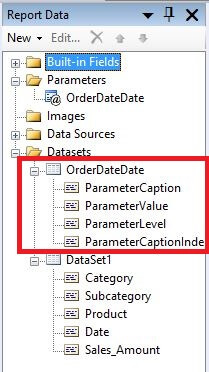
Once you click on "Show Hidden Datasets", all hidden datasets will be visible. As you can see from the below image dataset OrderDateDate is now visible.
Report Parameter Hidden Dataset

Step 3

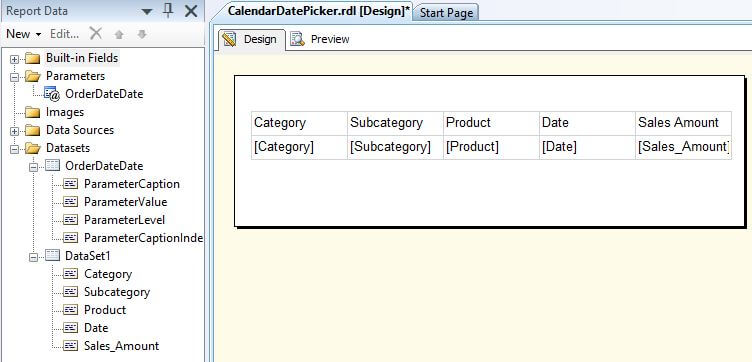
I am inserting a Tablix for data viewing. I have chosen all the data fields from DataSet1 in the Tablix. After this modification my report looks like the below image.
Tablix in Report
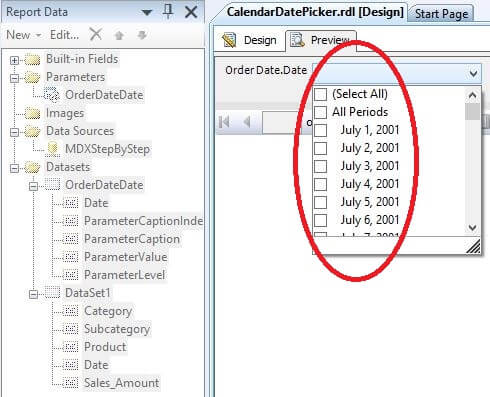
Now if I preview the report, I get all the date values in a parameter dropdown as a list of values. All these date values are coming from the OrderDateDate dataset. You can refer to the below image.
List Of Values For Date Parameter
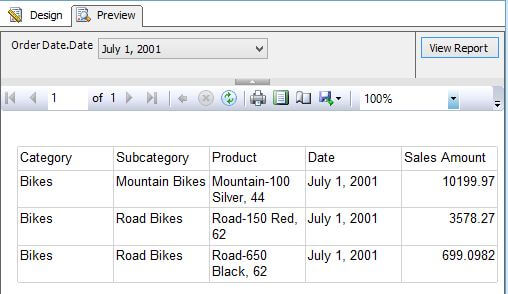
If I choose July 1, 2001 from the parameter list and click on "View Report". The image shown below is the output of the report for July 1, 2001 parameter value.
Report Output using List Of Values Parameter

Using a Calendar Date Picker for the Parameter Value

Now I want to use a Calendar Date Picker in place of this list of values. You might be thinking why do I need a Calendar Date Picker if a list of values already fills the requirement. Actually there are couples of advantages of using calendar date picker:
  • Report execution time will be faster; this is because the Calendar Date Picker parameter doesn't need a separate dataset to get date values from the database. Executing a separate query to get all date values from the database is an extra burden on SSRS. The Calendar Date Picker is a SSRS built-in feature which gives all date values without hitting your database.
  • Navigation will be very easy. You can easily select any date from the calendar date picker, but you struggle to find a particular date from the list of values.
  • It can save a lot of time for the user.
The following steps will show how you can set this up.

Step 1

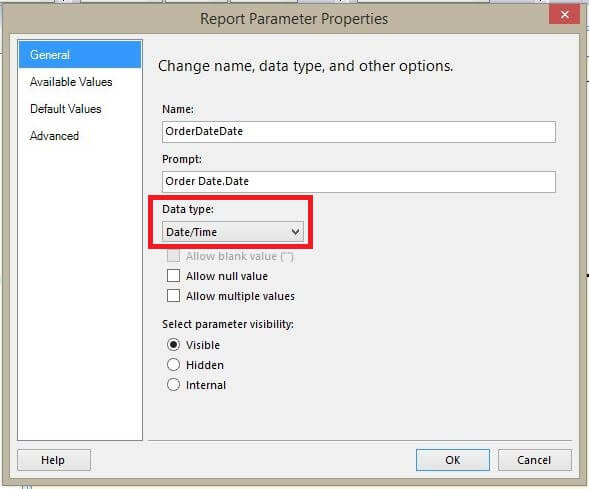
Right click on @OrderDateDate report parameter and click on "Parameter Properties", it will open a Report Parameter Properties window. In the General tab change the parameter Data Type to Date/Time from Text and make sure "Allow Null Value" and "Allow Multiple Values" check boxes are unchecked. Your changes should look like the below image.
Report Parameter Properties General Tab

Step 2

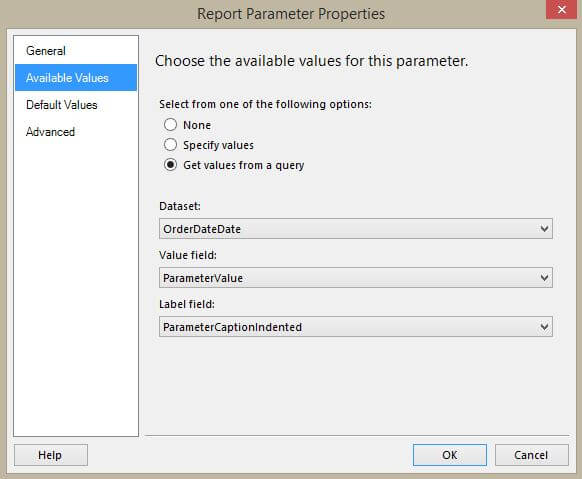
Now click on the Available Values tab; here you can find that for the @OrderDateDate parameter, values are coming from the OrderDateDate dataset. You can refer to the below image.
Report Parameter Properties Available Values Tab
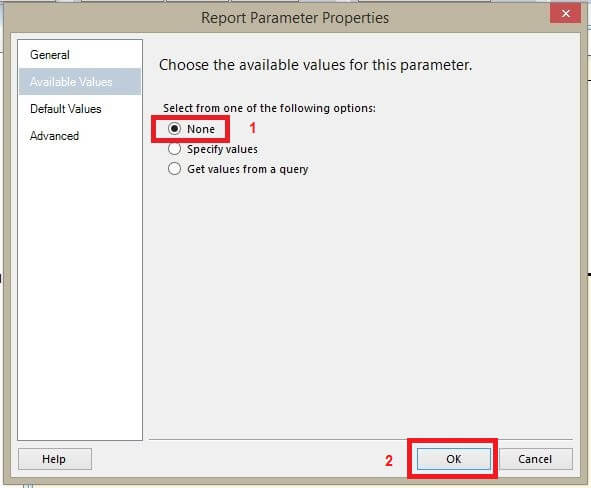
Choose None as shown below and click OK.
Report Parameter Properties Available Values Tab After Changes

Step 3

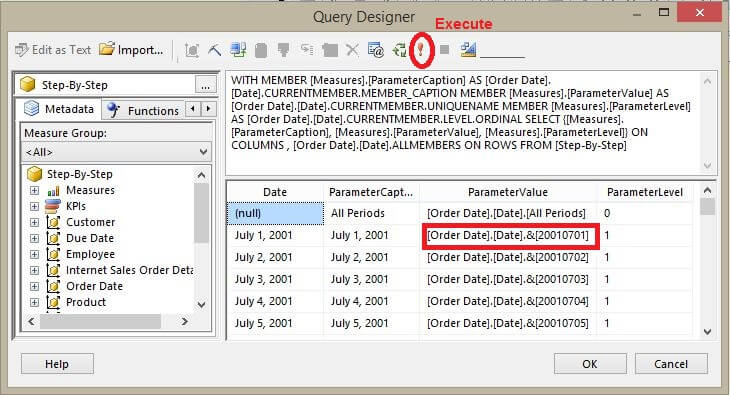
Right click on the OrderDateDate dataset and click on "Query". It will open the query designer window. We need to examine the OrderDateDate dataset MDX query. Let's execute the MDX query by clicking on the Execute button. On successful execution your MDX Query will return 4 columns. You can refer to the below image.
Query Designer Window For OrderDateDate Dataset
If you look at the Query execution result then you will notice that the ParameterCaption column data was used as a Label Field for the @OrderDateDate parameter and the ParameterValue column data was used as the Value Field for the @OrderDateDate parameter. You can confirm this from Step 2. When I selected July 1, 2001 as the parameter value behind the scenes the [Order Date].[Date].&[20010701] was passed into the MDX Query.
At this stage if you preview the report for July 1, 2001 parameter value then it will throw an error. This is because the parameter value 7/1/2001 12:00:20 AM will be passed into the MDX query. If we convert the parameter value in this[Order Date].[Date].&[20010701] format then the MDX query will accept the parameter value and the report will execute successfully. So our ultimate task is to generate the parameter value in MDX format. In the next step I will build the expression which will generate the parameter value in MDX format.

Step 4

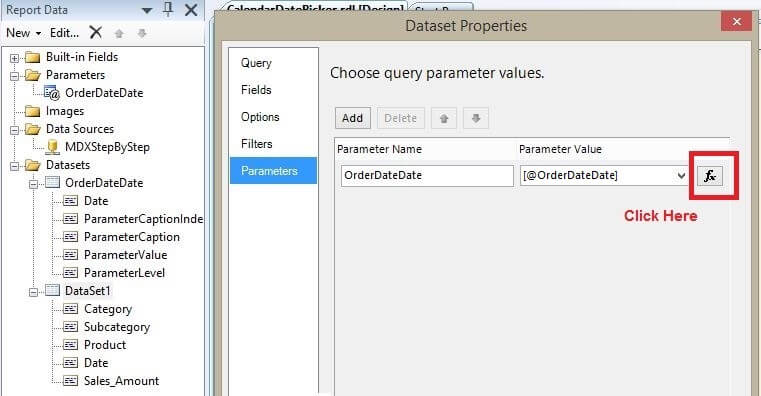
Right click on Dataset1 and click on "Dataset Properties". It will open the Dataset Properties window. Click on the Parameters tab and click on the Parameter Value Expression button. You can refer to the below image.
Dataset Properties Window
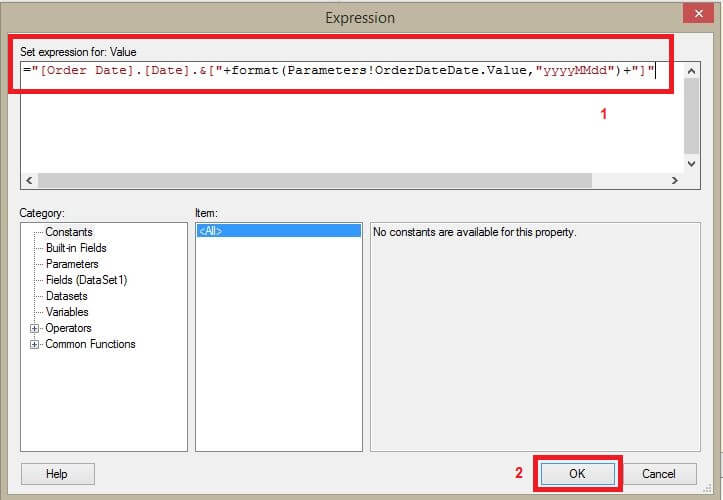
Once you click on the Parameter Value Expression button, it will open an Expression window. Here we have to build an expression that will be generate the parameter value in MDX format, so my ultimate task is to get the parameter value in this format [Order Date].[Date].&[20010701].
The below Expression will return the parameter value in the required MDX format. In the below expression I am usingformat(Parameters!OrderDateDate.Value,"yyyyMMdd") which will return a value like 20010701. This expression may differ in your case, so make the appropriate changes in your expression.
="[Order Date].[Date].&["+format(Parameters!OrderDateDate.Value,"yyyyMMdd")+"]"
My Expression window looks like the below image.
Expression Window

Step 5

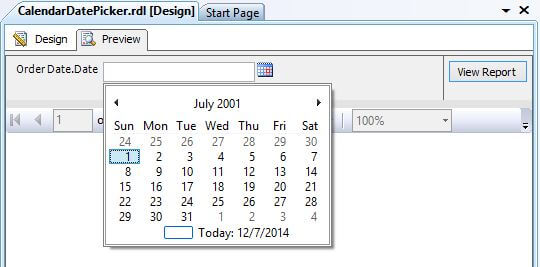
We have done all required changes, let's preview the report. I will select July 1, 2001 from the calendar date picker and click on "View Report". You can refer to the below image.
Report with Calendar Date Picker Parameter
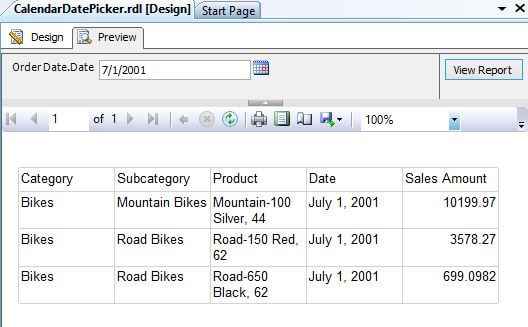
Congratulations! Now the report is using a Calendar Date Picker parameter. You can verify the results from the below image.
Report Output using Calendar Date Picker

Step 6

You can now delete the OrderDateDate dataset because it is not required anymore.

Execute a SQL Server Reporting Services report from Integration Services Package

You have a requirement where a user does not want to use the SQL Server Reporting Services (SSRS) report subscription service, but wants to execute the SSRS report from a SQL Server Integration Services Package. In this case, whenever the user executes the package, a particular SSRS report will be executed and exported into Excel.  The exported Excel file will be saved in a shared folder. In this tip I will demonstrate how to solve this problem.


Problem
You have a requirement where a user does not want to use the SQL Server Reporting Services (SSRS) report subscription service, but wants to execute the SSRS report from a SQL Server Integration Services Package. In this case, whenever the user executes the package, a particular SSRS report will be executed and exported into Excel.  The exported Excel file will be saved in a shared folder. In this tip I will demonstrate how to solve this problem.
Solution
This tip assumes that you have previous real world work experience building a simple SSRS Report and SSIS package. I will use AdventureworksDW2008R2 sample database and SQL Server 2012 to demonstrate the problem and solution.
I have divided this tip in two parts.

Part 1: I will create a sample SSRS report and deploy it to the Report Server.
Part 2: I will create a SSIS Package which will execute the SSRS report created in Part1.

Part 1: Create SSRS Report and deploy it to Report Server

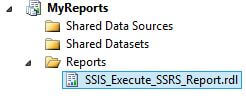
Step 1: Add Report item in SSRS

I have added a report item in my report project. My report name is SSIS_Execute_SSRS_REPORT. Refer to the image below.
If you are new to SQL Server Reporting Services, check out this tutorial and these tips.
Adding new SSRS Report

Step 2: Add Data Sources in Reporting Services

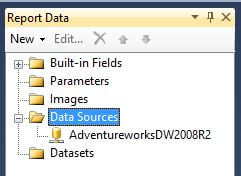
I have already created an embedded data source connection to AdventureworksDW2008R2 database. Refer to the image below.
Adding new Data Source

Step 3: Add a Dataset in SSRS

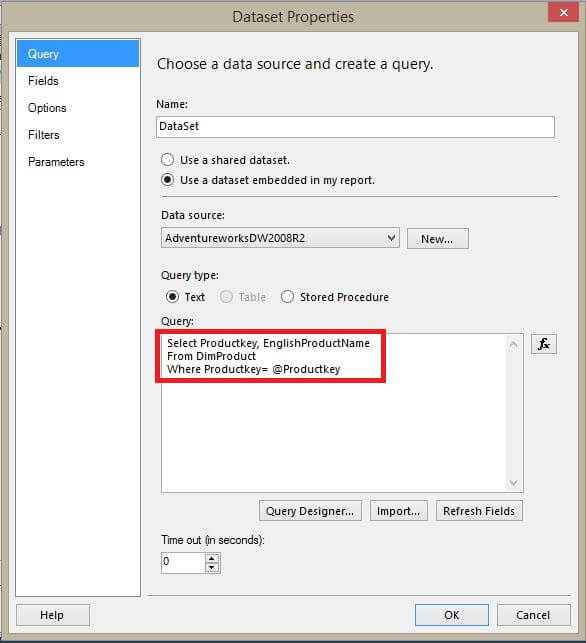
I am creating a new Dataset, this dataset returns two data fields (Productkey and EnglishProductName) and it has one@Productkey Query Parameter. Refer to the image below.
Adding new DataSet

Dataset Query
Select Productkey, EnglishProductName
From DimProduct
Where Productkey= @Productkey
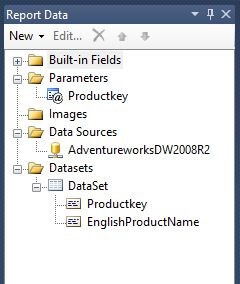
As you can see from the image below, the Dataset has been created with one Report parameter - @Productkey.
Report Data Pane after adding Data Source and Dataset

Step 4: Add Tablix in SSRS

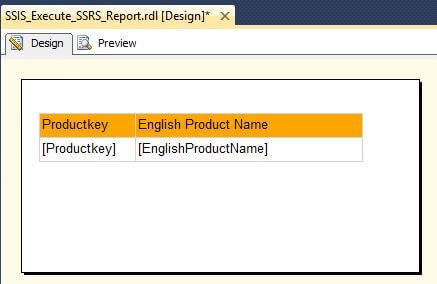
For data viewing purposes, I am adding a Tablix into my report. This Tablix will show the Productkey and EnglishProductName. Refer to the image below.
Adding Tablix in Report body

Step 5: Report Deployment

Please follow the steps below to deploy the report on Report Server.
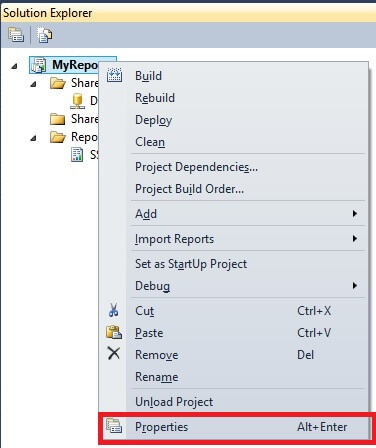
  • Right click on Report Project which contains your report and then click on Properties. Refer to the image below.

Report Project Property

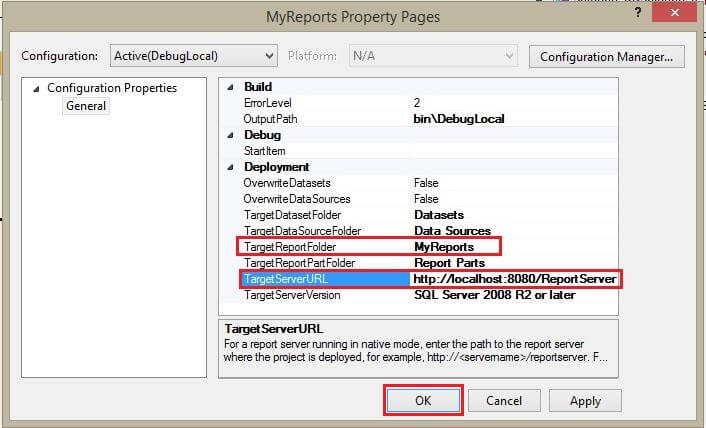
Once you clicked on Properties; it will open a new Property Pages window. Here you have to enter theTargetReportFolder name and TargetServerURLTargetServerURL is the URL for the Report Server andTargetReportFolder is a folder on the Report Server where the report will be deployed. If the TargetReportFolderfolder is not present on the Report Server then it will be created in the deployment process. As you can see from the image below I have already filled the required information. TargetReportFolder and TargetServerURL may differ in your case, make the changes accordingly and click OK.

Report Project Page Property Window

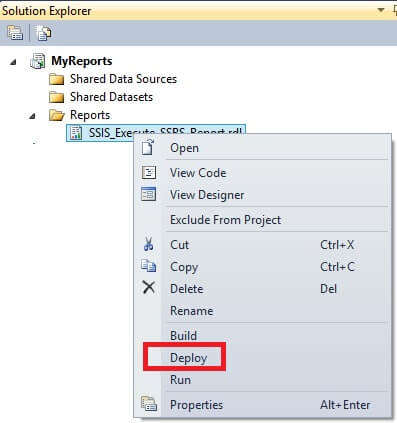
  • Right click on the report which you want to deploy on Report Server and click on deploy. It will deploy the report on the Report Server. Refer to the image below.

Report Deployment

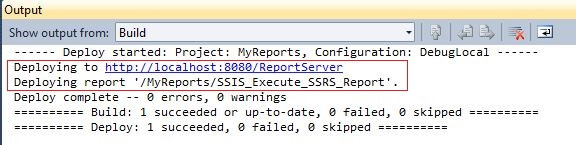
I am deploying my report; on successful deployment you will get a similar message as shown below.
Report Deployment Message
The above message tells that SSIS_Execute_SSRS_REPORT report was deployed to "http://localhost:8080/ReportServer" Report Server under MyReports folder.

Part2: Create SSIS Package to Execute an SSRS Report

In this part of the tip, I will be demonstrate how to create an SSIS Package to execute an SSRS report. Please follow all the steps listed below.

Step 1: Create an SSIS Package

I have already created a new package name as SSRS_Report_Execute. 
If you are new to SQL Server Integration Services, check out this tutorial and these tips.

Step 2: Creates Variables in SSIS

Create two variables with package scope.
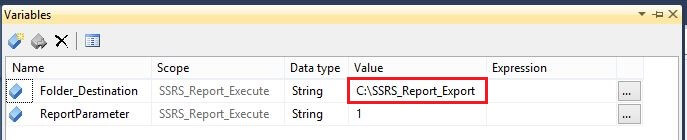
  • Folder_Destination - Data Type for this variable is String. Please assign the variable value asC:\SSRS_Report_Execute. This variable holds the folder path where the exported file will be saved. You have to make sure that this folder is present at the defined location, otherwise the SSIS Package will fail.
  • ReportParameter - Data Type for this variable is String. Please assign the variable value as 1. This variable holds the parameter value which needs to be passed into the SSRS report.
I have assigned values for both the variables; refer to the image below.
Creating Variables at package scope

Step 3: Create a Windows Folder

Create a folder named SSRS_Report_Execute on the root of the C drive. This folder name and location depends onFolder_Destination variable value. I have assigned the C:\SSRS_Report_Execute value to a Folder_Destinationvariable in the previous step.

Step 4: Drag the SSIS Script Task

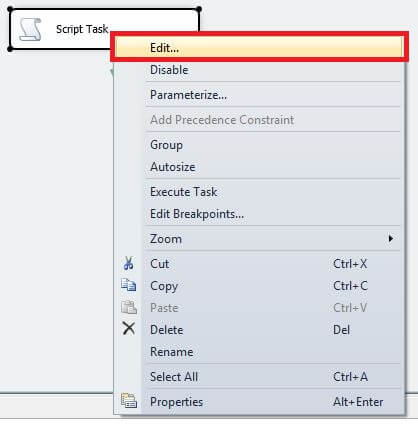
Drag the Script Task component from the toolbox into the control flow and then right click on the script task and click on edit.  Refer to the image below.
Adding Script task in control flow
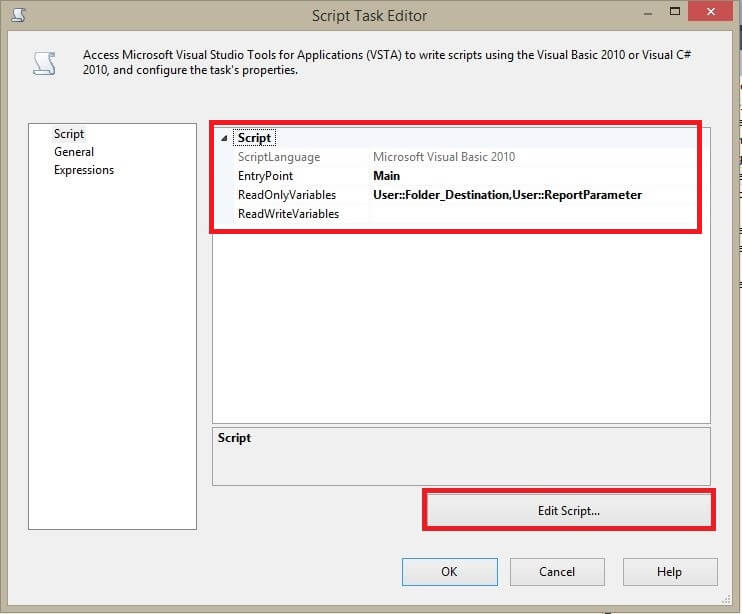
Once you click on edit button it will open the Script task editor window. Choose Microsoft Visual Basics 2010 as the Script language and select Folder_Destination and ReportParameter variables as Read only variables. Once the above two selections are done then click on Edit Script.  Refer to the image below.
Script Task Editor Window
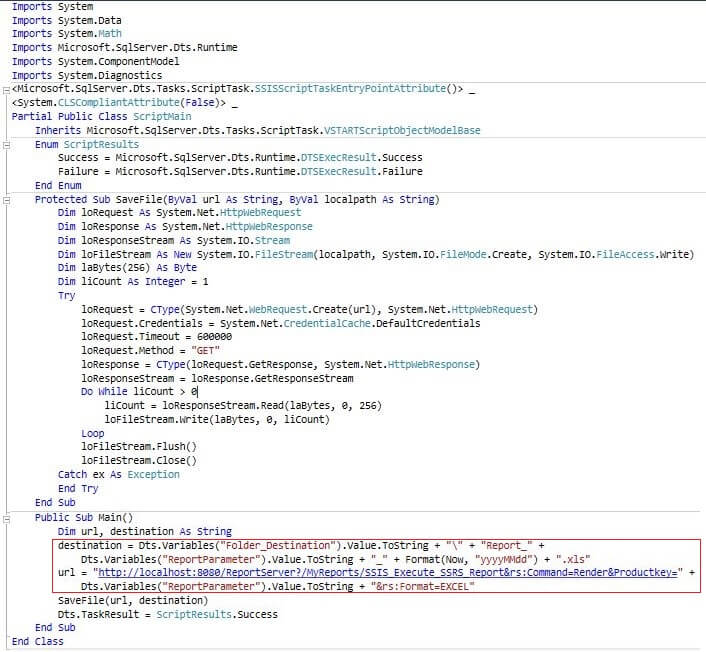
Once you click on Edit Script task, it will open Script Task editor window. Please replace all auto generated VB code with the below VB Code below and save it.
Script Task VB Code
Imports System
Imports System.Data
Imports System.Math
Imports Microsoft.SqlServer.Dts.Runtime
Imports System.ComponentModel
Imports System.Diagnostics
<Microsoft.SqlServer.Dts.Tasks.ScriptTask.SSISScriptTaskEntryPointAttribute()> _
<System.CLSCompliantAttribute(False)> _
Partial Public Class ScriptMain
    Inherits Microsoft.SqlServer.Dts.Tasks.ScriptTask.VSTARTScriptObjectModelBase
    Enum ScriptResults
        Success = Microsoft.SqlServer.Dts.Runtime.DTSExecResult.Success
        Failure = Microsoft.SqlServer.Dts.Runtime.DTSExecResult.Failure
    End Enum
    Protected Sub SaveFile(ByVal url As String, ByVal localpath As String)
        Dim loRequest As System.Net.HttpWebRequest
        Dim loResponse As System.Net.HttpWebResponse
        Dim loResponseStream As System.IO.Stream
        Dim loFileStream As New System.IO.FileStream(localpath, System.IO.FileMode.Create, System.IO.FileAccess.Write)
        Dim laBytes(256) As Byte
        Dim liCount As Integer = 1
        Try
            loRequest = CType(System.Net.WebRequest.Create(url), System.Net.HttpWebRequest)
            loRequest.Credentials = System.Net.CredentialCache.DefaultCredentials
            loRequest.Timeout = 600000
            loRequest.Method = "GET"
            loResponse = CType(loRequest.GetResponse, System.Net.HttpWebResponse)
            loResponseStream = loResponse.GetResponseStream
            Do While liCount > 0
                liCount = loResponseStream.Read(laBytes, 0, 256)
                loFileStream.Write(laBytes, 0, liCount)
            Loop
            loFileStream.Flush()
            loFileStream.Close()
        Catch ex As Exception
        End Try
    End Sub
    Public Sub Main()
        Dim url, destination As String
        destination = Dts.Variables("Folder_Destination").Value.ToString + "\" + "Report_" + Dts.Variables("ReportParameter").Value.ToString + "_" + Format(Now, "yyyyMMdd") + ".xls"
        url = "http://localhost:8080/ReportServer?/MyReports/SSIS_Execute_SSRS_Report&rs:Command=Render&Productkey=" + Dts.Variables("ReportParameter").Value.ToString + "&rs:Format=EXCEL"
        SaveFile(url, destination)
        Dts.TaskResult = ScriptResults.Success
    End Sub
End Class
Your script task VB code must look like as below image.
Script Task Script Editor Window
Based on the requirement the user has to modify the URL and Destination variables in the Public Sub Main() function (highlighted in the code with the rectangle box). The URL variable contains the path of the report for the report server and the Destination variable contains the folder path where the file needs to be saved with a dynamic file name.
The URL is a combination of ReportServerurl + TargetReportFolder + ReportName + ReportParameter + ReportRenderingformat.
In my case:
ReportServerurl is http://localhost:8080/ReportServer
TargetReportFolder is MyReports
ReportName is SSIS_Execute_SSRS_Report
ReportParameter is Productkey
ReportRenderingformat is rs:Format=EXCEL
So the URL is "http://localhost:8080/ReportServer?/MyReports/SSIS_Execute_SSRS_Report&rs:Command=Render&Productkey=" + Dts.Variables("ReportParameter").Value.ToString + "&rs:Format=EXCEL"

Step 5: Execute Script Task

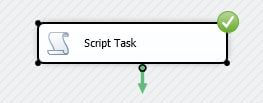
Please assign the ReportParameter variable value.  The value assigned in the ReportParameter variable value will be passed into the SSRS report as report parameter value. Let's execute the script task; on a successful execution it will export the file to specified folder location.
Script Task Execution Window